Map Guided Tour - Konfiguration
The guided tour does not require much configuration. It derives its contents from the current app state. So depending on your app’s module configuration it will add or remove sections automatically.
Clicking on  opens the configuration window, which shows the available configuration.
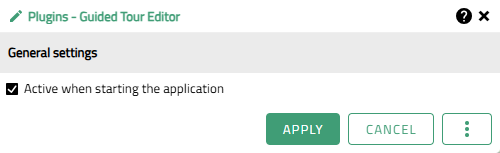
Figure 1. Menu for the configuration of the Guided Tour
General Settings
| Option | Description |
|---|---|
Active when starting the application |
Checkbox to set whether the guided tour should open on opening the map application. |
Start via splash screen
You can also configure the guided tour to be part of the splash screen.
To do so either use the primary or secondary button of the splash screen with a title and add the ActivateGuidedTourCallback in the Callback Options:
{
    "type": "ActivateGuidedTourCallback"
}
If using the splash screen as entry point to the guided tour, make sure to deactivate Active when starting the application in the General Settings!
|